Threads scheduler

Threads scheduler

Schedule Threads posts in Liniest with one workflow for writing, previewing, and placing posts on the calendar.
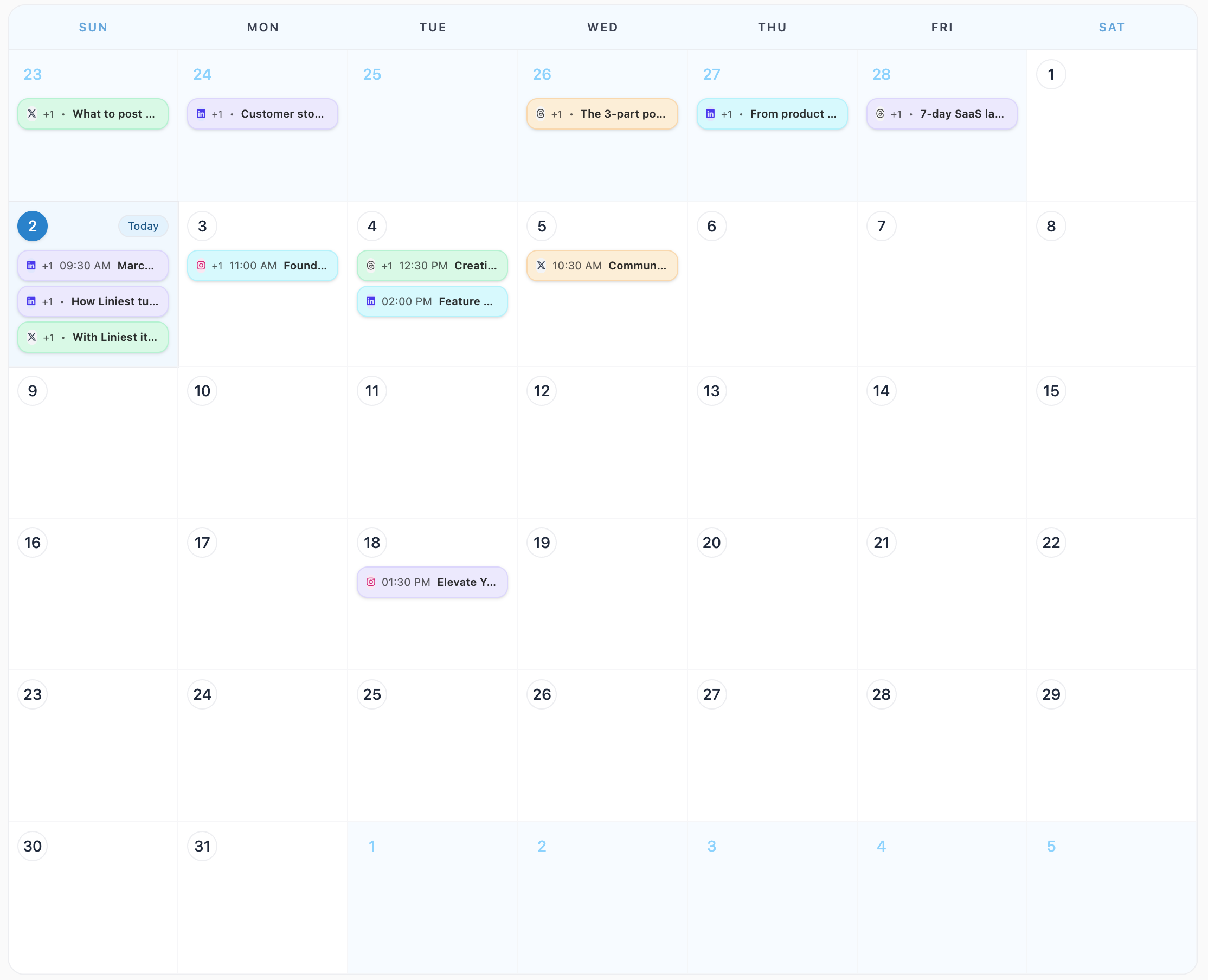
Content editorPreview + date pickerShared calendarAI settings
Threads scheduler

What this page covers

A practical Threads workflow inside Liniest

This page keeps the focus on real product actions: write the post, check the preview, choose the account, and decide whether to publish now or schedule it.

In the product
What you actually use to schedule

  • Connect the right account
  • Write in one content editor
  • Set the time in the shared calendar
  • Set AI rules for Threads writing

How to schedule Threads content in Liniest

  1. 1Connect the right account in Liniest.
  2. 2Create the Threads post in the content editor and attach any media you need.
  3. 3Use the preview to check the post before it goes live.
  4. 4Set the date and time, then manage the scheduled Threads item from the calendar.
  5. 5If this task repeats often, reuse AI settings or workflows where they actually help.
Connect the right account

Feature 01

Connect the right account

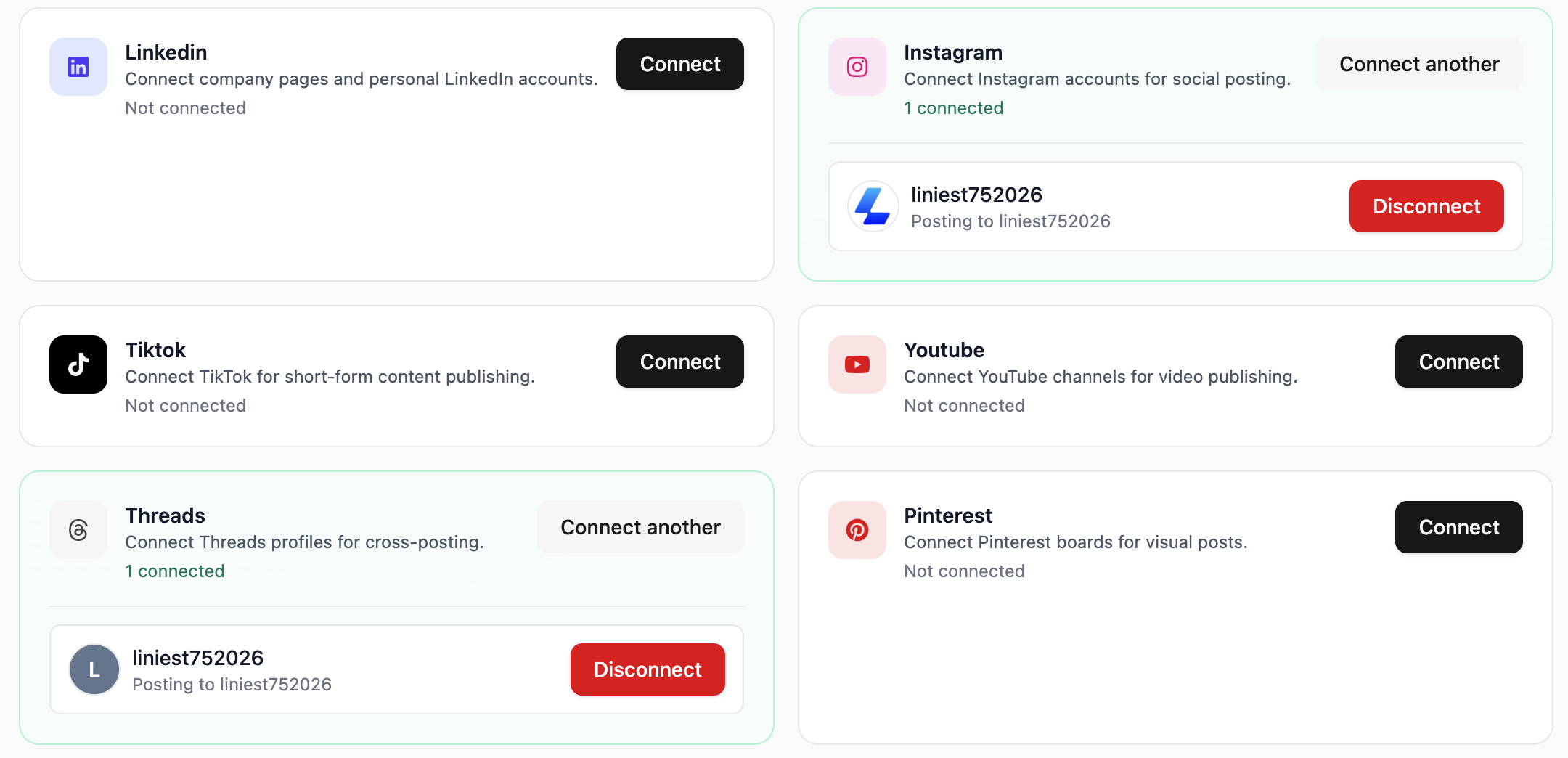
Liniest lets you choose the correct connected account before you schedule or publish the Threads post.
  • Choose pages, accounts, channels, or boards from connected destinations
  • Keep destination selection inside the same draft flow
  • Use the same setup across the rest of your channels
Write in one content editor

Feature 02

Write in one content editor

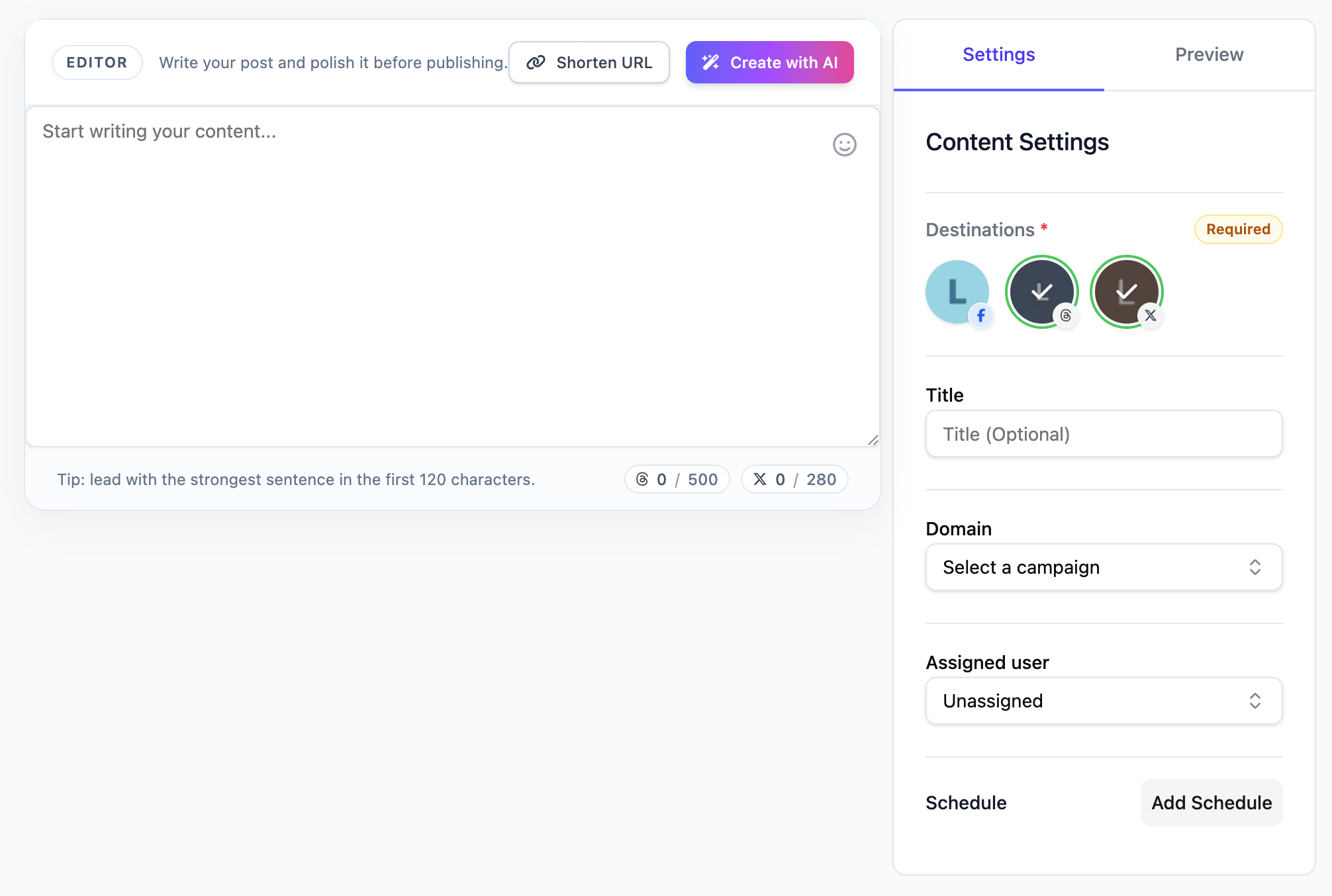
Create Threads drafts in one editor with rich text editing, media attachments, assignments, and AI assistance. The editor is built to keep the writing, destination, and scheduling context together instead of splitting them across tools.
  • Use the built-in AI assistant to create a first draft
  • Select one or more destinations from the same draft
  • Keep copy, media, and assignee in one place
Set the time in the shared calendar

Feature 03

Set the time in the shared calendar

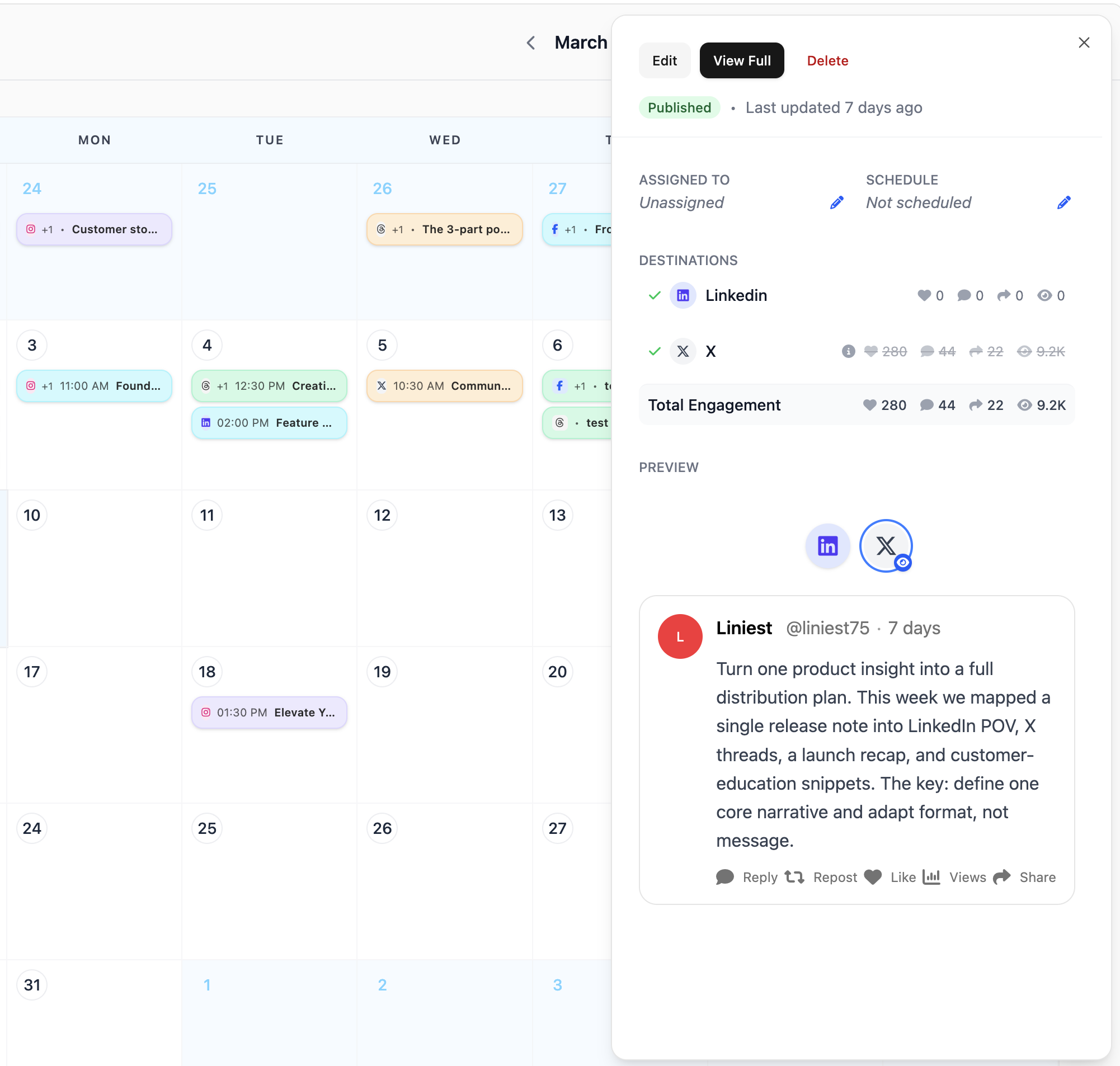
Use the Liniest calendar to schedule Threads content, inspect details later, and move items when plans change.
  • Set an exact publish date and time
  • Open scheduled items directly from the calendar
  • Drag and reschedule when timing changes
Set AI rules for Threads writing

Feature 04

Set AI rules for Threads writing

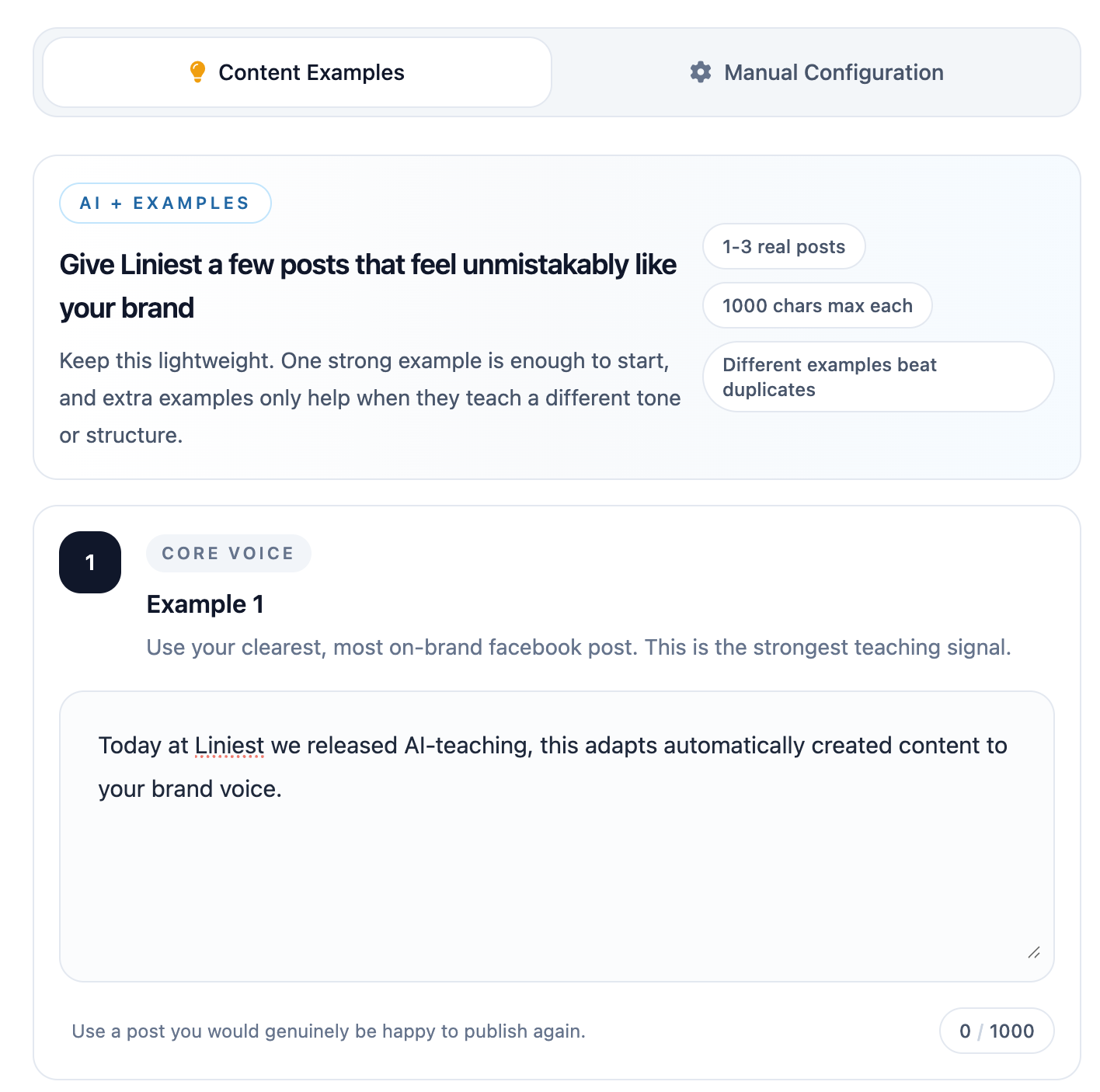
If your team uses AI to prepare Threads drafts, Liniest lets you teach tone with examples and set manual rules such as banned terms, formatting preferences, or platform-specific instructions.

  • Add example posts to teach tone and phrasing
  • Set manual rules and do-not-use terms
  • Use platform-specific instructions when needed

Common Threads jobs this helps with

  • Draft a Threads post, preview it, and set the publish time from one place.
  • Keep Threads posts visible beside other scheduled content in the shared calendar.
  • Use example posts to teach AI a tone that fits how you want Threads content to read.

Threads scheduler FAQ

Can I schedule Threads posts in the same calendar as other channels?

Yes. The shared calendar is built to show content across channels in one place.

Can I preview a Threads post before scheduling it?

Yes. The preview tools help you check the draft before you set the final time.

Can AI settings be adjusted for Threads writing?

Yes. You can use examples and manual instructions that are specific to this platform.